> ## Documentation Index
> Fetch the complete documentation index at: https://wb-21fd5541-docs-sandboxes-integrations-placement.mintlify.site/llms.txt
> Use this file to discover all available pages before exploring further.
# Save and diff code
> Enable code saving, compare code across W&B runs with the code comparer, and capture Jupyter session history.
Use W\&B to save your code, compare code across runs, view local changes, and capture Jupyter session history.
## Enable code saving
Configure code saving for your team or organization. Team and organization controls are documented in [Configure privacy settings](/platform/hosting/privacy-settings).
By default, W\&B disables code saving for all teams. Before you can turn it on for a team, an organization admin must enable it at the organization level. See the [Organization](#organization) section.
### Team
To enable code saving for a team as a team admin, navigate to the **Settings** page, then go to the **Privacy** section, and configure **Enable code saving by default** for runs in that team. This option is available only when an organization admin has not enforced code saving restrictions for the whole organization. For navigation steps, see [Configure privacy settings for a team](/platform/hosting/privacy-settings#configure-privacy-settings-for-a-team).
### Organization
To enable code saving for an organization as an organization admin, navigate to **Settings**, go to the **Privacy** section, and turn on **Enforce default code saving restrictions** so code saving stays off by default for every team. While this enforcement is on, team admins cannot turn on **Enable code saving by default** for a team. For the full list of organization controls, see [Enforce privacy settings for all teams](/platform/hosting/privacy-settings#enforce-privacy-settings-for-all-teams).
## Save code
Capture source code that produced a run as an [artifact](/models/ref/python/experiments/artifact). The code artifact is viewable within your project's workspace.
There are two ways to save code: a fine-grained approach and an automatic approach.
### Fine grain control
Use `wandb.Run.log_code()` to log specific files or directories as an [artifact](/models/ref/python/experiments/artifact).
By default, W\&B walks through the current directory and logs all files that end with `.py`.
The following example shows how to use `wandb.Run.log_code()` to log the current directory:
```python theme={null}
import wandb
with wandb.init() as run:
# Log the current directory as a code artifact
run.log_code(root=".")
```
The following example shows how to use `wandb.Run.log_code()` with `include_fn=` and `exclude_fn=` parameters to specify which files to include and exclude when you log code:
```python theme={null}
import wandb
with wandb.init() as run:
run.log_code(
root="../",
include_fn=lambda path: path.endswith(".py") or path.endswith(".ipynb"),
exclude_fn=lambda path, root: os.path.relpath(path, root).startswith(
"cache/"
),
)
```
For more control over the types and locations of source code files that W\&B saves, see the [reference docs](/models/ref/python/experiments/run#log_code).
### Automatically capture code
Use `wandb.init(settings=wandb.Settings(code_dir=))` to automatically capture all code in the current directory and subdirectories. By default, W\&B captures:
* Files ending in `.py`
* requirements.txt
* Dockerfile
* Excludes anything under `wandb/` or `.wandb/`
The following example shows how capture all code in the current directory and subdirectories:
```python theme={null}
import wandb
with wandb.init(settings=wandb.Settings(code_dir=".")) as run:
# Your training code here
```
You can also specify a different directory by replacing `.` with the path to the directory that you want to capture.
## View local changes
W\&B generates diff files when you log code with staged or unstaged changes in your Git repository, and you can view the changes in the W\&B UI.
W\&B names the diff files `diff.patch` or `diff_.patch`. These files contain local code changes that are not yet committed to Git, relative to `HEAD`.
To view diff files:
1. Navigate to your project's workspace.
2. In the left sidebar, click **Workspace**.
3. In the run selector, select the run whose diff you want to view.
4. On the run **Overview** page, select the **Files** tab.
5. From the list of files, select the `diff.patch` or `diff_.patch` file.
6. Select a file from the list to expand the diff for that file.
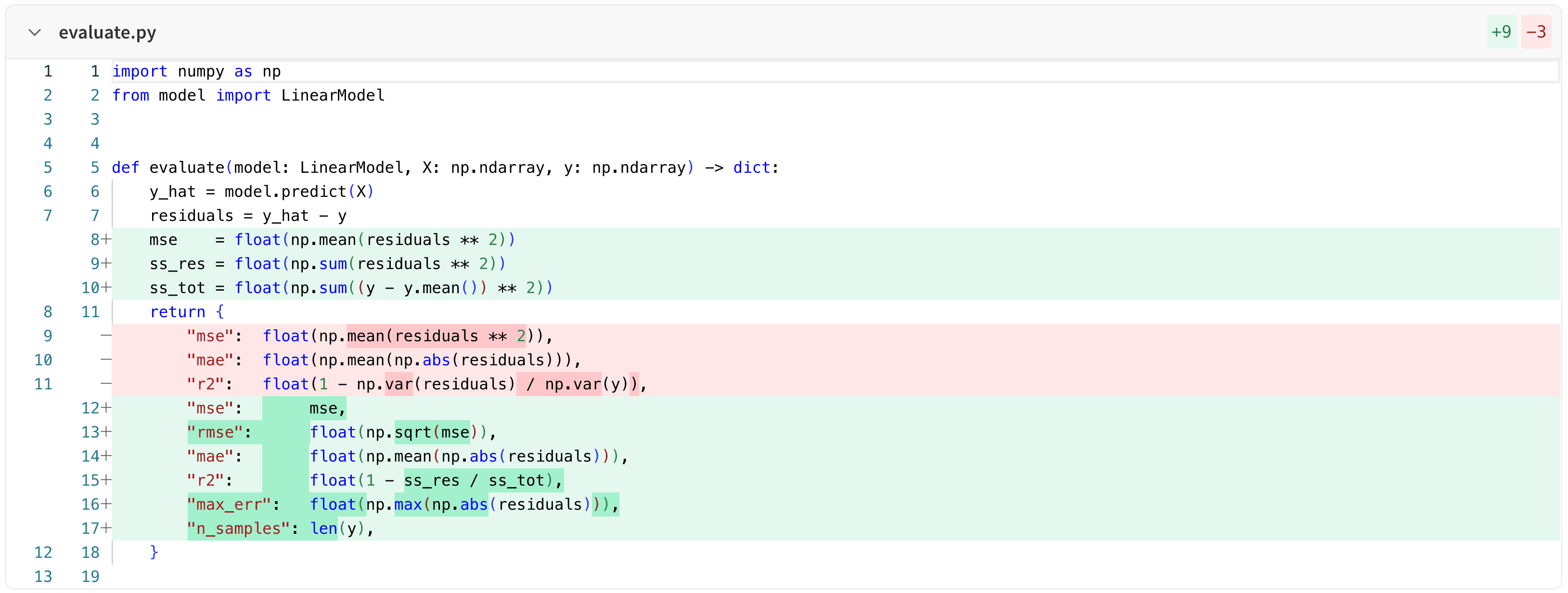
W\&B supports two modes for viewing the diff across runs: *unified* and *split*.
* Unified view shows the diff in a single pane:
 * Split view shows the diff in two panes, side-by-side:
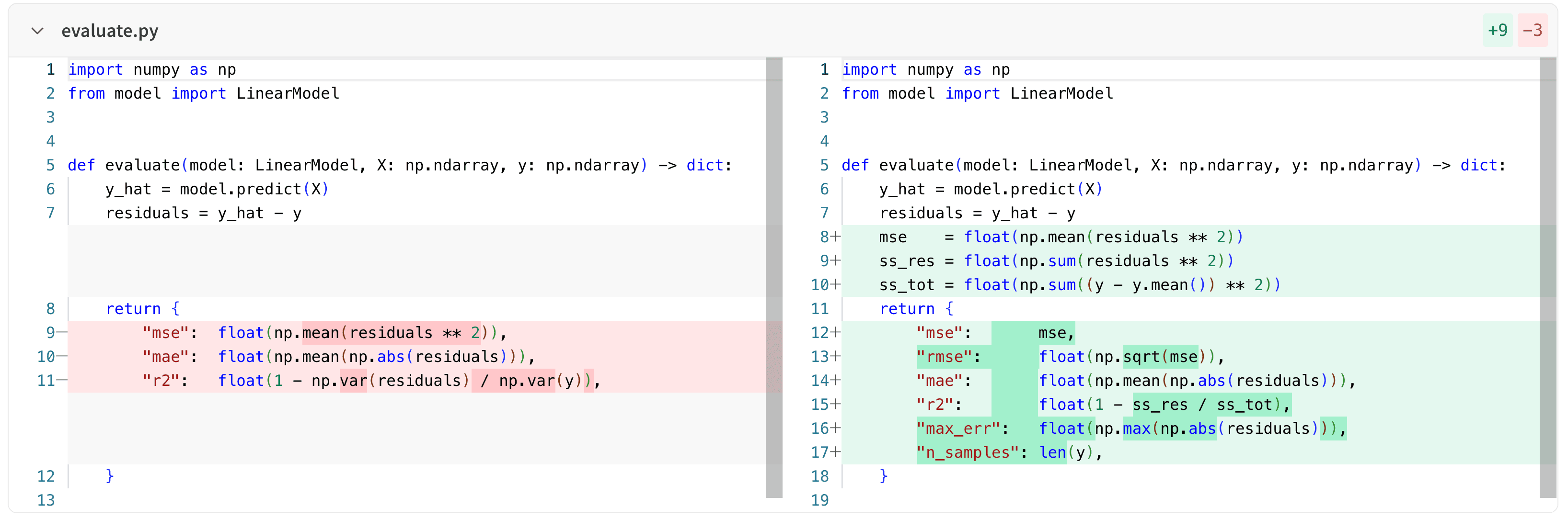 Toggle between the two views by selecting either the **Unified** or **Split** buttons in the upper right corner of the diff view, below the **Download** button.
## Jupyter session history
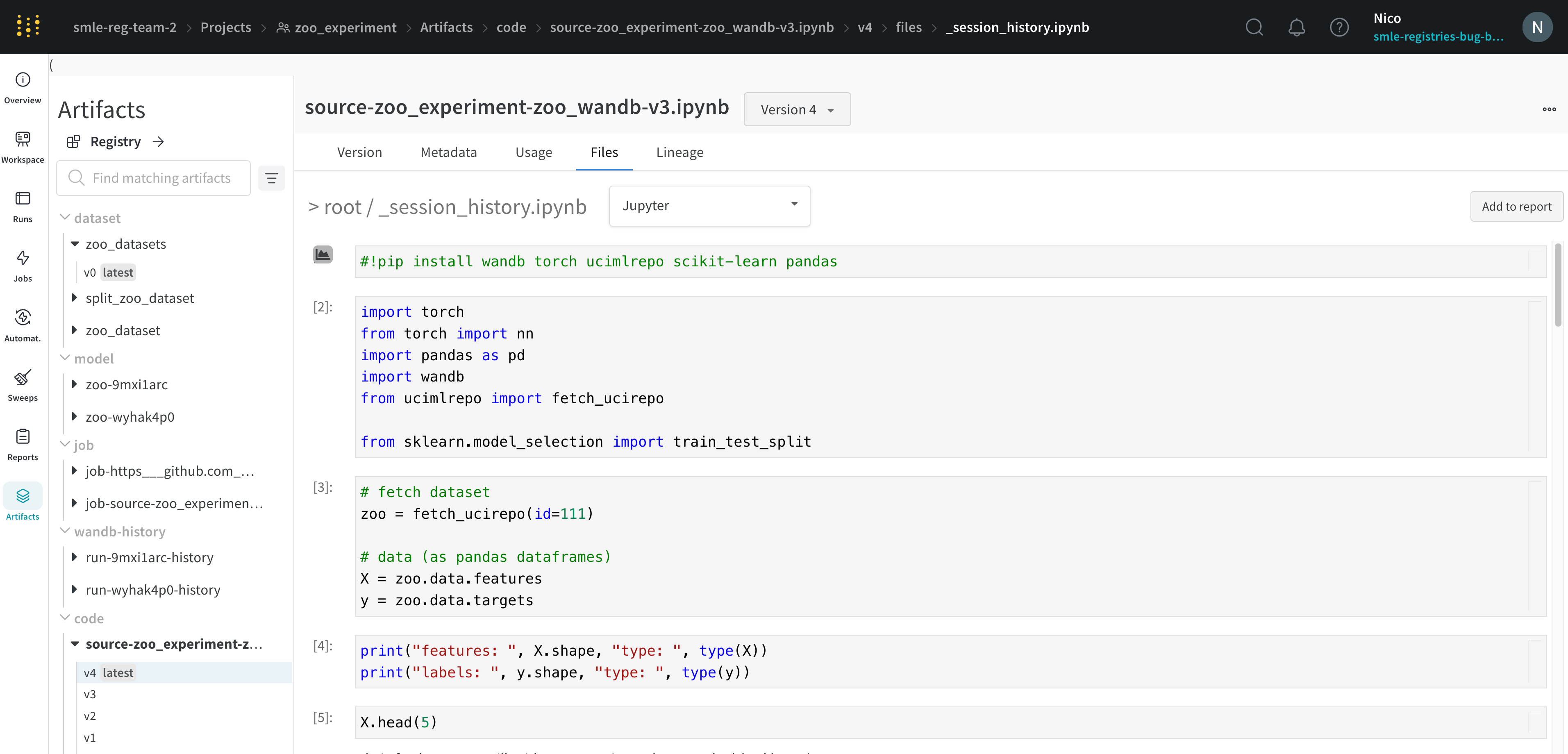
W\&B saves the history of code executed in your Jupyter notebook session. When you call `wandb.init()` inside of Jupyter, W\&B adds a hook to automatically save a Jupyter notebook containing the history of code executed in your current session.
1. Navigate to your project's workspace that contains your code.
2. Select the **Artifacts** tab in the project sidebar.
3. Expand the **code** artifact.
4. Select the **Files** tab.
Toggle between the two views by selecting either the **Unified** or **Split** buttons in the upper right corner of the diff view, below the **Download** button.
## Jupyter session history
W\&B saves the history of code executed in your Jupyter notebook session. When you call `wandb.init()` inside of Jupyter, W\&B adds a hook to automatically save a Jupyter notebook containing the history of code executed in your current session.
1. Navigate to your project's workspace that contains your code.
2. Select the **Artifacts** tab in the project sidebar.
3. Expand the **code** artifact.
4. Select the **Files** tab.
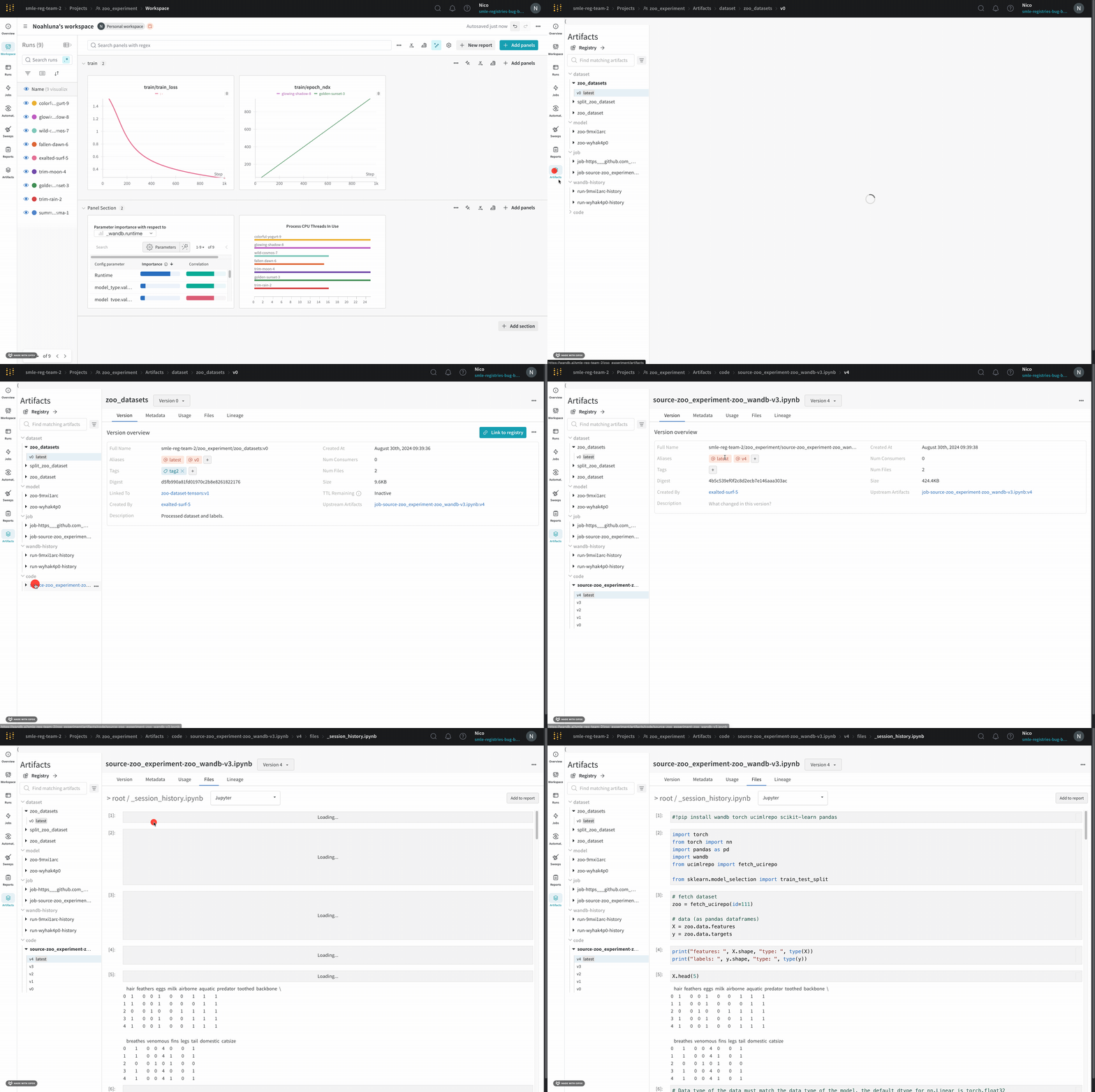 This displays the cells that ran in your session along with any outputs created by calling IPython's `display` method. This lets you see exactly what code ran within Jupyter in a given run. When possible, W\&B also saves the most recent version of the notebook, which you find in the code directory as well.
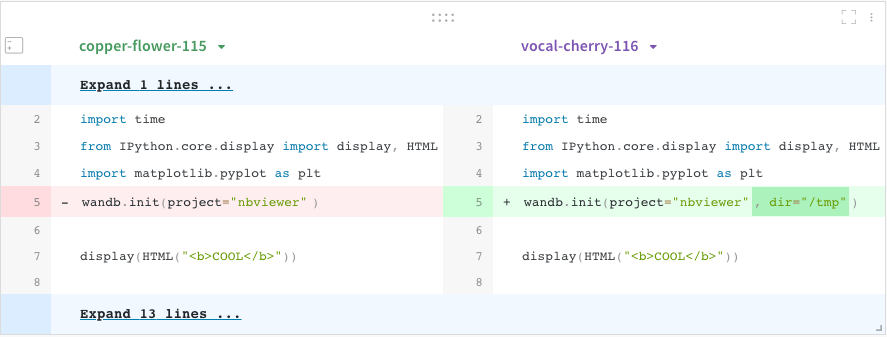
 ## Compare code across runs
Compare code used in different W\&B runs:
1. Select the **Add panels** button in the top right corner of the page.
2. Expand **TEXT AND CODE** dropdown and select **Code**.
## Compare code across runs
Compare code used in different W\&B runs:
1. Select the **Add panels** button in the top right corner of the page.
2. Expand **TEXT AND CODE** dropdown and select **Code**.