> ## Documentation Index
> Fetch the complete documentation index at: https://wb-21fd5541-docs-sandboxes-integrations-placement.mintlify.site/llms.txt
> Use this file to discover all available pages before exploring further.
# Panels
> Use and customize workspace panels to visualize your logged data
Use workspace panel visualizations to explore your [logged data](/models/ref/python/experiments/run.md/#method-runlog) by key, visualize the relationships between hyperparameters and output metrics, and more. This page describes how to choose a workspace mode, add and configure panels, organize them into sections, and share them with collaborators.
## Workspace modes
W\&B projects support two different workspace modes. The icon next to the workspace name shows its mode.
| Icon | Workspace mode |
| -------------------------------------------------------------------------------------------------------------------------------------------------------------------------------------------------------------------------------------------------------------------------------------------------------------------------------------------------------------------------------------------------------------------------------------------------------------------------------------------------------------------------------------------------------------------------------------------------------------------------------------------------------------------------------------------------------------------------------------------------------------------------------------------------------------------------------------------------------------------------------------------------------------------------------------------------------------------------------------------------------------------------------------------------------------------------------------------------------------------------------------------------------------------------------------------------------------------------------------------------------------------------------------------------------------------------------------------------------------------------------------------------------------------------------------------------------------------------------------------------------------------------------------------------------------------------------------------------------------------------------------------------------------------------------------------------------------------------------------------------------------- | ------------------------------------------------------------------------------------------------------------------------------------------------------------------------------------------------------------------------------------------------------------------------------------------------------------------------------------------------------------------------------------------------------------------------------------------------------------------------------- |
|  | **Automated workspaces** automatically generate panels for all keys logged in the project. Choose an automatic workspace:
- To get started quickly by visualizing all available data for the project.
- For smaller projects that log fewer keys.
- For more broad analysis.
If you delete a panel from an automatic workspace, you can use [Quick add](#quick-add) to recreate it. |
|  | **Manual workspaces** start as blank slates and display only the panels you intentionally add. Choose a manual workspace:
- When you care mainly about a fraction of the keys logged in the project.
- For more focused analysis.
- To improve the performance of a workspace by avoiding loading panels that are less useful to you.
Use [Quick add](#quick-add) to quickly populate a manual workspace and its sections with useful visualizations. |
To change how a workspace generates panels, [reset the workspace](#reset-a-workspace).
**Undo changes to your workspace**
To undo changes to your workspace, click the Undo button (arrow that points left) or press **Cmd+Z** (macOS) or **Ctrl+Z** (Windows or Linux).
## Reset a workspace
Reset a workspace to change its mode or clear its panels to start fresh.
To reset a workspace:
1. At the top of the workspace, click the **action ()** menu.
2. Click **Reset workspace**.
## Configure the workspace layout
Workspace layout settings control how panels and sections are organized and displayed across the whole workspace.
To configure the workspace layout, click **Settings** near the top of the workspace, then click **Workspace layout**. The following settings are available:
* **Hide empty sections during search** (turned on by default)
* **Sort panels alphabetically** (turned off by default)
* **Section organization** (grouped by first prefix by default). To modify this setting:
1. Click the padlock icon.
2. Choose how to group panels within a section.
To configure defaults for the workspace's line plots, refer to [Line plots](/models/app/features/panels/line-plot/).
### Configure a section's layout
To configure the layout of a section, click its gear icon, then click **Display preferences**. The following settings are available:
* **Turn on or off colored run names in tooltips** (turned on by default)
* **Only show highlighted run in companion chart tooltips** (turned off by default)
* **Number of runs shown in tooltips** (a single run, all runs, or **Default**)
* **Display full run names on the primary chart tooltip** (turned off by default)
## View a panel in full-screen mode
Full-screen mode gives a panel more space, which is useful for closer inspection of your data. In full-screen mode, the run selector displays.
To view a panel in full-screen mode:
1. Hover over the panel.
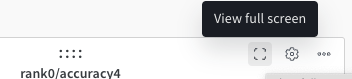
2. Click the panel's **action ()** menu, then click the full-screen button, which looks like a viewfinder or an outline showing the four corners of a square.
 When you [share the panel](#share-a-panel) while viewing it in full-screen mode, the resulting link opens in full-screen mode automatically.
When you work in full-screen mode, use the following tips:
* To return to a panel's workspace from full-screen mode, click the left-pointing arrow at the top of the page.
* To navigate through a section's panels without exiting full-screen mode, use either the **Previous** and **Next** buttons below the panel or the left and right arrow keys.
* To reclaim more space for the panel, minimize the run selector with **Cmd+.** (macOS) or **Ctrl+.** (Windows or Linux).
* When you view an image from a [media panel](/models/app/features/panels/media) in full-screen mode, keyboard shortcuts can zoom in or out, reset zoom, or zoom to fit. See [Keyboard shortcuts](/models/app/keyboard-shortcuts#media-panels).
See [Keyboard shortcuts](/models/app/keyboard-shortcuts) for other full-screen and panel shortcuts.
## Add panels
The following sections describe ways to add panels to your workspace.
### Add a panel manually
Add panels to your workspace one at a time, either globally or at the section level.
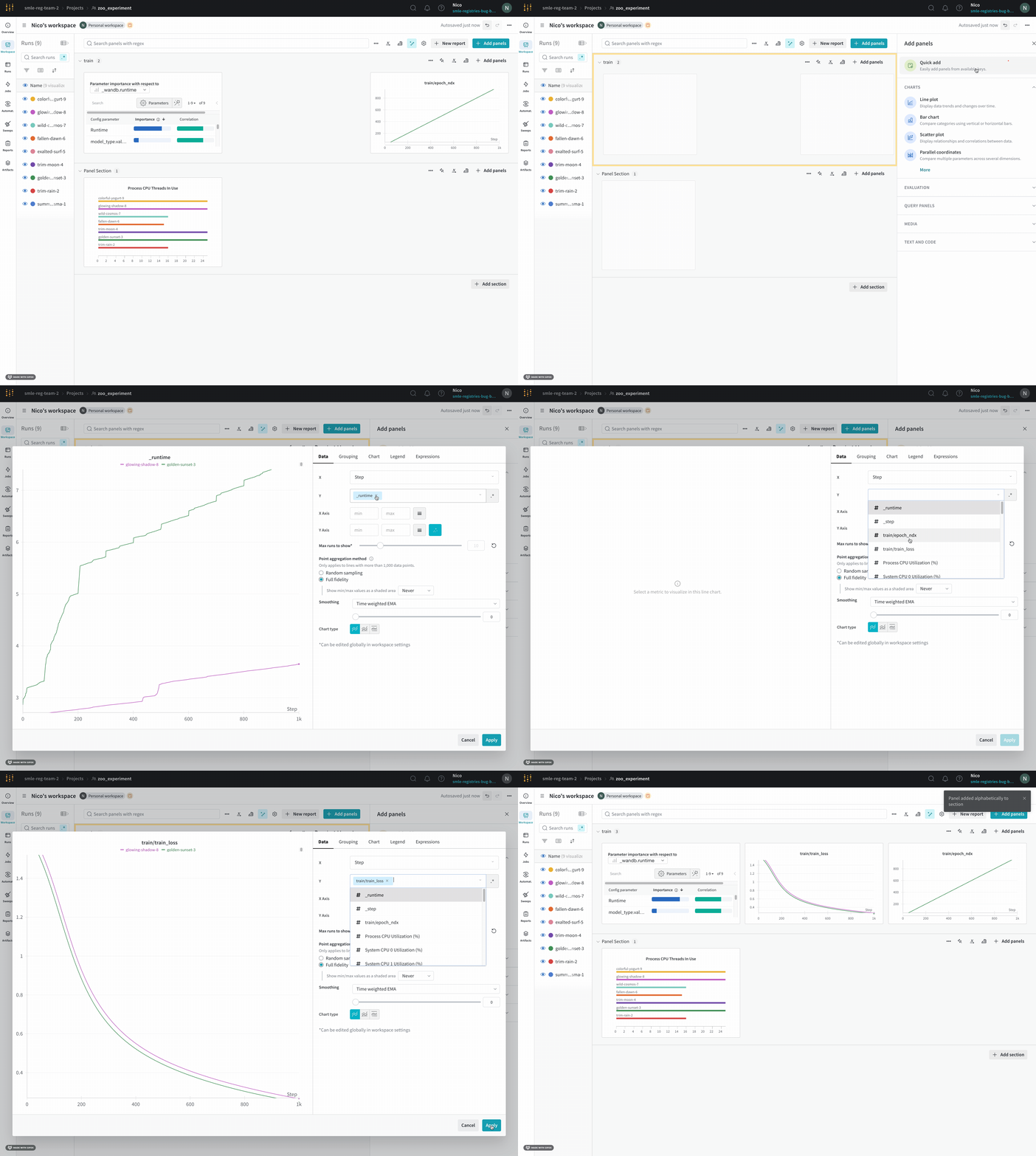
1. To add a panel globally, click **Add panels** in the control bar near the panel search field.
2. To add a panel directly to a section instead, click the section's **action ()** menu, then click **+ Add panels**.
3. Select the type of panel to add, such as a chart. The panel's configuration details appear, with defaults selected.
4. Optional: Customize the panel and its display preferences. Configuration options depend on the type of panel you select. To learn more about the options for each type of panel, refer to the relevant section, such as [Line plots](/models/app/features/panels/line-plot/) or [Bar plots](/models/app/features/panels/bar-plot/).
5. Click **Apply**.
When you [share the panel](#share-a-panel) while viewing it in full-screen mode, the resulting link opens in full-screen mode automatically.
When you work in full-screen mode, use the following tips:
* To return to a panel's workspace from full-screen mode, click the left-pointing arrow at the top of the page.
* To navigate through a section's panels without exiting full-screen mode, use either the **Previous** and **Next** buttons below the panel or the left and right arrow keys.
* To reclaim more space for the panel, minimize the run selector with **Cmd+.** (macOS) or **Ctrl+.** (Windows or Linux).
* When you view an image from a [media panel](/models/app/features/panels/media) in full-screen mode, keyboard shortcuts can zoom in or out, reset zoom, or zoom to fit. See [Keyboard shortcuts](/models/app/keyboard-shortcuts#media-panels).
See [Keyboard shortcuts](/models/app/keyboard-shortcuts) for other full-screen and panel shortcuts.
## Add panels
The following sections describe ways to add panels to your workspace.
### Add a panel manually
Add panels to your workspace one at a time, either globally or at the section level.
1. To add a panel globally, click **Add panels** in the control bar near the panel search field.
2. To add a panel directly to a section instead, click the section's **action ()** menu, then click **+ Add panels**.
3. Select the type of panel to add, such as a chart. The panel's configuration details appear, with defaults selected.
4. Optional: Customize the panel and its display preferences. Configuration options depend on the type of panel you select. To learn more about the options for each type of panel, refer to the relevant section, such as [Line plots](/models/app/features/panels/line-plot/) or [Bar plots](/models/app/features/panels/bar-plot/).
5. Click **Apply**.
 ### Quick add panels
Use **Quick add** to add a panel automatically for each key you select, either globally or at the section level.
For an automated workspace with no deleted panels, the **Quick add** option isn't visible because the workspace already includes panels for all logged keys. You can use **Quick add** to re-add a panel that you deleted.
To open **Quick add**, do one of the following:
* To use **Quick add** to add a panel globally, click **Add panels** in the control bar near the panel search field, then click **Quick add**.
* To use **Quick add** to add a panel directly to a section, click the section's **action ()** menu, click **Add panels**, then click **Quick add**.
A list of panels appears. Each panel with a checkmark is already included in the workspace. To add panels from the list:
* To add all available panels, click the **Add `[N]` panels** button at the top of the list. The **Quick Add** list closes and the new panels display in the workspace.
* To add an individual panel from the list, hover over the panel's row, then click **Add**. Repeat this step for each panel you want to add, then click the **X** at the top right to close the **Quick Add** list. The new panels display in the workspace.
Optional: Customize the panel's settings.
## Share a panel
Share a panel to send collaborators directly to a focused view of a specific visualization without navigating to the full workspace. To share a panel using a link, do one of the following:
* While viewing the panel in full-screen mode, copy the URL from the browser.
* Click the **action ()** menu, then click **Copy panel URL**.
Share the link with the user or team. When they access the link, the panel opens in [full-screen mode](#view-a-panel-in-full-screen-mode).
To return to a panel's workspace from full-screen mode, click the left-pointing arrow at the top of the page.
### Compose a panel's full-screen link programmatically
When you [create an automation](/models/automations/) or similar workflow, it can be useful to include the panel's full-screen URL. The following format shows a panel's full-screen URL. In the following example, replace the entity, project, panel, and section names in brackets.
```text theme={null}
https://wandb.ai/[ENTITY_NAME]/[PROJECT_NAME]?panelDisplayName=[PANEL_NAME]&panelSectionName=[SECTION_NAME]
```
If multiple panels in the same section have the same name, this URL opens the first panel with the name.
### Embed or share a panel on social media
To embed a panel in a website or share it on social media, the panel must be viewable by anyone with the link. If a project is private, only members of the project can view the panel. If the project is public, anyone with the link can view the panel.
To get the code to embed or share a panel on social media:
1. From the workspace, hover over the panel, then click its **action ()** menu.
2. Click the **Share** tab.
3. Change **Only those who are invited have access** to **Anyone with the link can view**. Otherwise, the choices in the next step aren't available.
4. Choose **Share on Twitter**, **Share on Reddit**, **Share on LinkedIn**, or **Copy embed link**.
### Email a panel report
To email a single panel as a stand-alone report:
1. Hover over the panel, then click the panel's **action ()** menu.
2. Click **Share panel in report**.
3. Select the **Invite** tab.
4. Enter an email address or username.
5. Optional: Change **can view** to **can edit**.
6. Click **Invite**. W\&B sends an email to the user with a clickable link to the report that contains only the panel you're sharing.
Unlike when you [share a panel](#share-a-panel), the recipient can't get to the workspace from this report.
## Manage panels
After you add panels to a workspace, you can edit, move, duplicate, or remove them to keep your visualizations organized and up to date.
### Edit a panel
To edit a panel:
1. Click its pencil icon.
2. Modify the panel's settings.
3. Optional: To change the panel to a different type, select the type and then configure the settings.
4. Click **Apply**.
### Move a panel
To move a panel to a different section, you can use the drag handle on the panel. To select the new section from a list instead:
1. Optional: Create a new section by clicking **Add section** after the last section.
2. Click the **action ()** menu for the panel.
3. Click **Move**, then select a new section.
You can also use the drag handle to rearrange panels within a section.
### Duplicate a panel
To duplicate a panel:
1. At the top of the panel, click the **action ()** menu.
2. Click **Duplicate**.
If desired, you can [customize](#edit-a-panel) or [move](#move-a-panel) the duplicated panel.
### Remove panels
To remove a panel:
1. Hover over the panel.
2. Click the **action ()** menu.
3. Click **Delete**.
To remove all panels from a manual workspace, click its **action ()** menu, then click **Clear all panels**.
To remove all panels from an automatic or manual workspace, you can [reset the workspace](#reset-a-workspace). Select **Automatic** to start with the default set of panels, or select **Manual** to start with an empty workspace with no panels.
## Manage sections
Sections group related panels together, making it easier to scan large workspaces. By default, sections in a workspace reflect the logging hierarchy of your keys. However, in a manual workspace, sections appear only after you start adding panels.
### Add a section
To add a section, click **Add section** after the last section.
To add a new section before or after an existing section, you can instead click the section's **action ()** menu, then click **New section below** or **New section above**.
Don't name a section "Section". Because of a known limitation, panels in this section don't render until you rename the section.
### Manage a section's panels
Within a section, you can resize panels, control pagination, and delete individual panels. Sections with many panels are paginated by default. The default number of panels on a page depends on the panel's configuration and on the sizes of the panels in the section.
To resize a panel, hover over it, click the drag handle, and drag it to adjust the panel's size. Resizing one panel resizes all panels in the section.
If a section is paginated, you can customize the number of panels to show on a page:
1. At the top of the section, click **1 to `[X]` of `[Y]`**, where `[X]` is the number of visible panels and `[Y]` is the total number of panels.
2. Choose how many panels to show per page, up to 100.
To delete a panel from a section:
1. Hover over the panel, then click its **action ()** menu.
2. Click **Delete**.
If you reset a workspace to an automated workspace, all deleted panels appear again.
### Rename a section
To rename a section, click its **action ()** menu, then click **Rename section**.
Don't name a section "Section". Because of a known limitation, panels in this section don't render until you rename the section.
### Delete a section
To delete a section, click the **action ()** menu, then click **Delete section**. This removes the section and its panels.
### Quick add panels
Use **Quick add** to add a panel automatically for each key you select, either globally or at the section level.
For an automated workspace with no deleted panels, the **Quick add** option isn't visible because the workspace already includes panels for all logged keys. You can use **Quick add** to re-add a panel that you deleted.
To open **Quick add**, do one of the following:
* To use **Quick add** to add a panel globally, click **Add panels** in the control bar near the panel search field, then click **Quick add**.
* To use **Quick add** to add a panel directly to a section, click the section's **action ()** menu, click **Add panels**, then click **Quick add**.
A list of panels appears. Each panel with a checkmark is already included in the workspace. To add panels from the list:
* To add all available panels, click the **Add `[N]` panels** button at the top of the list. The **Quick Add** list closes and the new panels display in the workspace.
* To add an individual panel from the list, hover over the panel's row, then click **Add**. Repeat this step for each panel you want to add, then click the **X** at the top right to close the **Quick Add** list. The new panels display in the workspace.
Optional: Customize the panel's settings.
## Share a panel
Share a panel to send collaborators directly to a focused view of a specific visualization without navigating to the full workspace. To share a panel using a link, do one of the following:
* While viewing the panel in full-screen mode, copy the URL from the browser.
* Click the **action ()** menu, then click **Copy panel URL**.
Share the link with the user or team. When they access the link, the panel opens in [full-screen mode](#view-a-panel-in-full-screen-mode).
To return to a panel's workspace from full-screen mode, click the left-pointing arrow at the top of the page.
### Compose a panel's full-screen link programmatically
When you [create an automation](/models/automations/) or similar workflow, it can be useful to include the panel's full-screen URL. The following format shows a panel's full-screen URL. In the following example, replace the entity, project, panel, and section names in brackets.
```text theme={null}
https://wandb.ai/[ENTITY_NAME]/[PROJECT_NAME]?panelDisplayName=[PANEL_NAME]&panelSectionName=[SECTION_NAME]
```
If multiple panels in the same section have the same name, this URL opens the first panel with the name.
### Embed or share a panel on social media
To embed a panel in a website or share it on social media, the panel must be viewable by anyone with the link. If a project is private, only members of the project can view the panel. If the project is public, anyone with the link can view the panel.
To get the code to embed or share a panel on social media:
1. From the workspace, hover over the panel, then click its **action ()** menu.
2. Click the **Share** tab.
3. Change **Only those who are invited have access** to **Anyone with the link can view**. Otherwise, the choices in the next step aren't available.
4. Choose **Share on Twitter**, **Share on Reddit**, **Share on LinkedIn**, or **Copy embed link**.
### Email a panel report
To email a single panel as a stand-alone report:
1. Hover over the panel, then click the panel's **action ()** menu.
2. Click **Share panel in report**.
3. Select the **Invite** tab.
4. Enter an email address or username.
5. Optional: Change **can view** to **can edit**.
6. Click **Invite**. W\&B sends an email to the user with a clickable link to the report that contains only the panel you're sharing.
Unlike when you [share a panel](#share-a-panel), the recipient can't get to the workspace from this report.
## Manage panels
After you add panels to a workspace, you can edit, move, duplicate, or remove them to keep your visualizations organized and up to date.
### Edit a panel
To edit a panel:
1. Click its pencil icon.
2. Modify the panel's settings.
3. Optional: To change the panel to a different type, select the type and then configure the settings.
4. Click **Apply**.
### Move a panel
To move a panel to a different section, you can use the drag handle on the panel. To select the new section from a list instead:
1. Optional: Create a new section by clicking **Add section** after the last section.
2. Click the **action ()** menu for the panel.
3. Click **Move**, then select a new section.
You can also use the drag handle to rearrange panels within a section.
### Duplicate a panel
To duplicate a panel:
1. At the top of the panel, click the **action ()** menu.
2. Click **Duplicate**.
If desired, you can [customize](#edit-a-panel) or [move](#move-a-panel) the duplicated panel.
### Remove panels
To remove a panel:
1. Hover over the panel.
2. Click the **action ()** menu.
3. Click **Delete**.
To remove all panels from a manual workspace, click its **action ()** menu, then click **Clear all panels**.
To remove all panels from an automatic or manual workspace, you can [reset the workspace](#reset-a-workspace). Select **Automatic** to start with the default set of panels, or select **Manual** to start with an empty workspace with no panels.
## Manage sections
Sections group related panels together, making it easier to scan large workspaces. By default, sections in a workspace reflect the logging hierarchy of your keys. However, in a manual workspace, sections appear only after you start adding panels.
### Add a section
To add a section, click **Add section** after the last section.
To add a new section before or after an existing section, you can instead click the section's **action ()** menu, then click **New section below** or **New section above**.
Don't name a section "Section". Because of a known limitation, panels in this section don't render until you rename the section.
### Manage a section's panels
Within a section, you can resize panels, control pagination, and delete individual panels. Sections with many panels are paginated by default. The default number of panels on a page depends on the panel's configuration and on the sizes of the panels in the section.
To resize a panel, hover over it, click the drag handle, and drag it to adjust the panel's size. Resizing one panel resizes all panels in the section.
If a section is paginated, you can customize the number of panels to show on a page:
1. At the top of the section, click **1 to `[X]` of `[Y]`**, where `[X]` is the number of visible panels and `[Y]` is the total number of panels.
2. Choose how many panels to show per page, up to 100.
To delete a panel from a section:
1. Hover over the panel, then click its **action ()** menu.
2. Click **Delete**.
If you reset a workspace to an automated workspace, all deleted panels appear again.
### Rename a section
To rename a section, click its **action ()** menu, then click **Rename section**.
Don't name a section "Section". Because of a known limitation, panels in this section don't render until you rename the section.
### Delete a section
To delete a section, click the **action ()** menu, then click **Delete section**. This removes the section and its panels.