> ## Documentation Index
> Fetch the complete documentation index at: https://wb-21fd5541-docs-sandboxes-integrations-placement.mintlify.site/llms.txt
> Use this file to discover all available pages before exploring further.
# UI ガイド
> Web インターフェースから Serverless Inference のモデルにアクセスします
Web UI から Serverless Inference service を使用する方法を説明します。このガイドでは、service へのアクセス方法、Playground でモデルを試す方法、モデルを並べて比較する方法、請求と使用状況を確認する方法を紹介します。コードを書かずにモデルをインタラクティブに試したい場合は、UI を使用してください。
UI を使用する前に、[前提条件](/ja/inference/prerequisites)を完了してください。
## Inference service にアクセスする
以下のセクションでは、Inference service にアクセスする 3 つの方法を紹介します。現在のワークフローに最も合った方法を選択してください。
### 直接リンク
[https://wandb.ai/inference](https://wandb.ai/inference) にアクセスしてください。
### Inference タブから
1. [https://wandb.ai/](https://wandb.ai/) で W\&B アカウントにアクセスします。
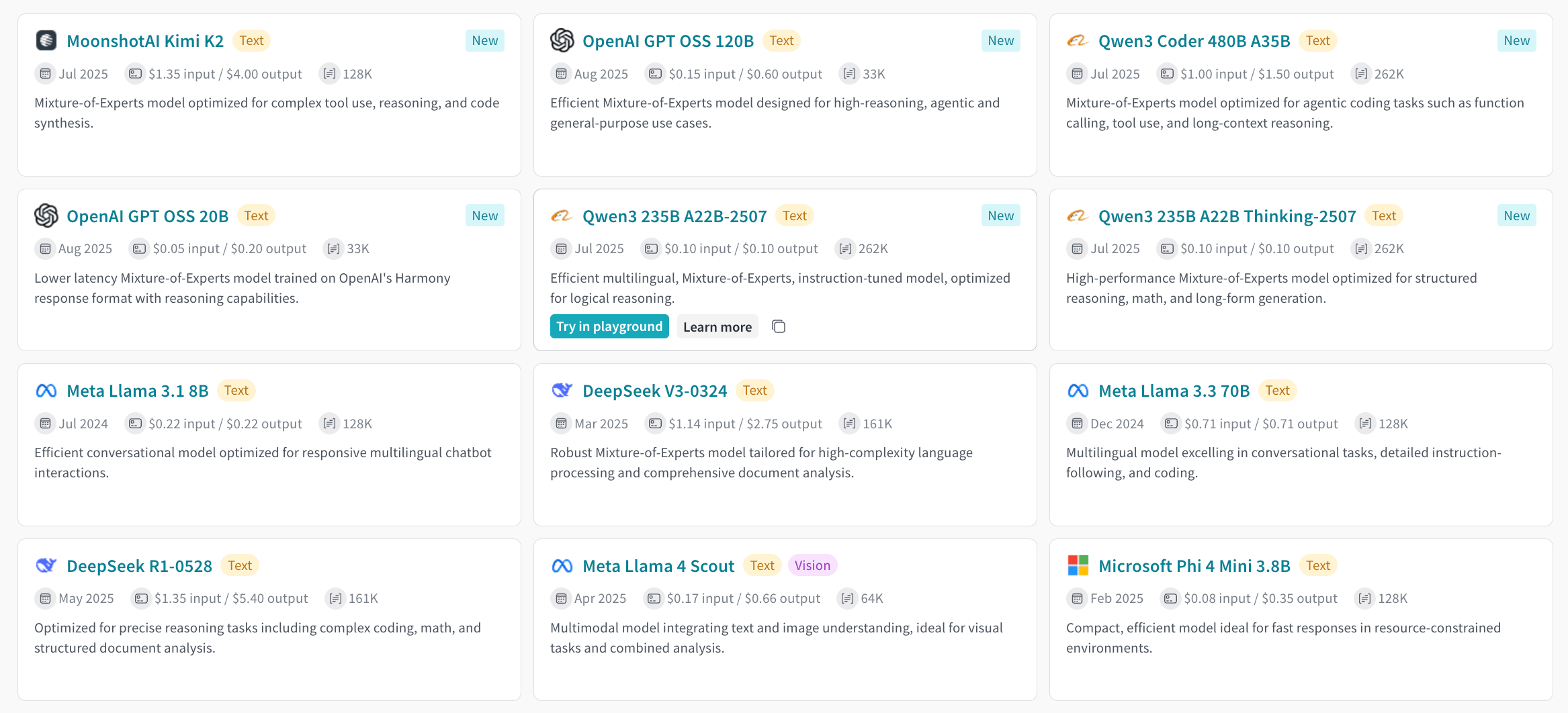
2. プロジェクトのサイドバーから **Inference** を選択します。利用可能なモデルとその情報が表示されるページが開きます。
### Playground タブから
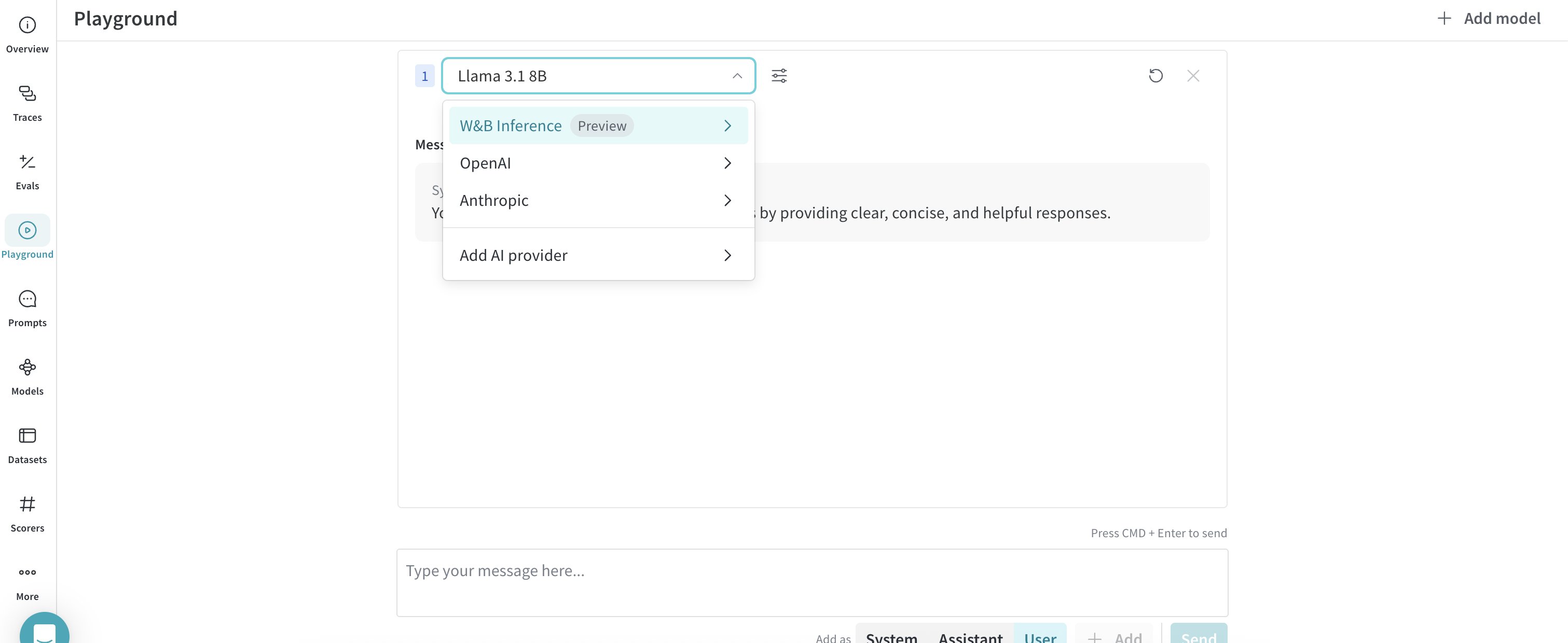
1. プロジェクトのサイドバーで **Playground** を選択します。Playground のチャット UI が表示されます。
2. LLM のドロップダウンリストで **Serverless Inference** にカーソルを合わせます。右側に利用可能なモデルのドロップダウンが表示されます。
3. モデルのドロップダウンでは、次の操作ができます:
* 任意のモデル名をクリックして、[そのモデルを Playground で試す](#try-a-model-in-the-playground)。
* [複数のモデルを比較する](#compare-multiple-models)
## Playgroundでモデルを試す
[モデルを選択](#access-the-inference-service)したら、他の場所に統合する前に、Playgroundでテストしてその応答を評価し、動作を調整できます。実行できる操作は次のとおりです。
* [Playgroundの設定とモデルのパラメーターをカスタマイズする](/ja/weave/guides/tools/playground#customize-playground-settings)。
* [メッセージを追加、再試行、編集、削除する](/ja/weave/guides/tools/playground#message-controls)。
* [カスタム設定を適用したモデルを保存して再利用する](/ja/weave/guides/tools/playground#saved-models)。
* [複数のモデルを比較する](#compare-multiple-models)。
## 複数のモデルを比較する
Playground では、Inference のモデルを並べて比較して、同じプロンプトに対する品質、レイテンシ、出力スタイルを評価できます。Compare ビューには、以下のセクションで説明する 2 つの場所からアクセスできます。
### Inferenceタブから
1. プロジェクトのサイドバーから **Inference** を選択します。利用可能なモデルのページが表示されます。
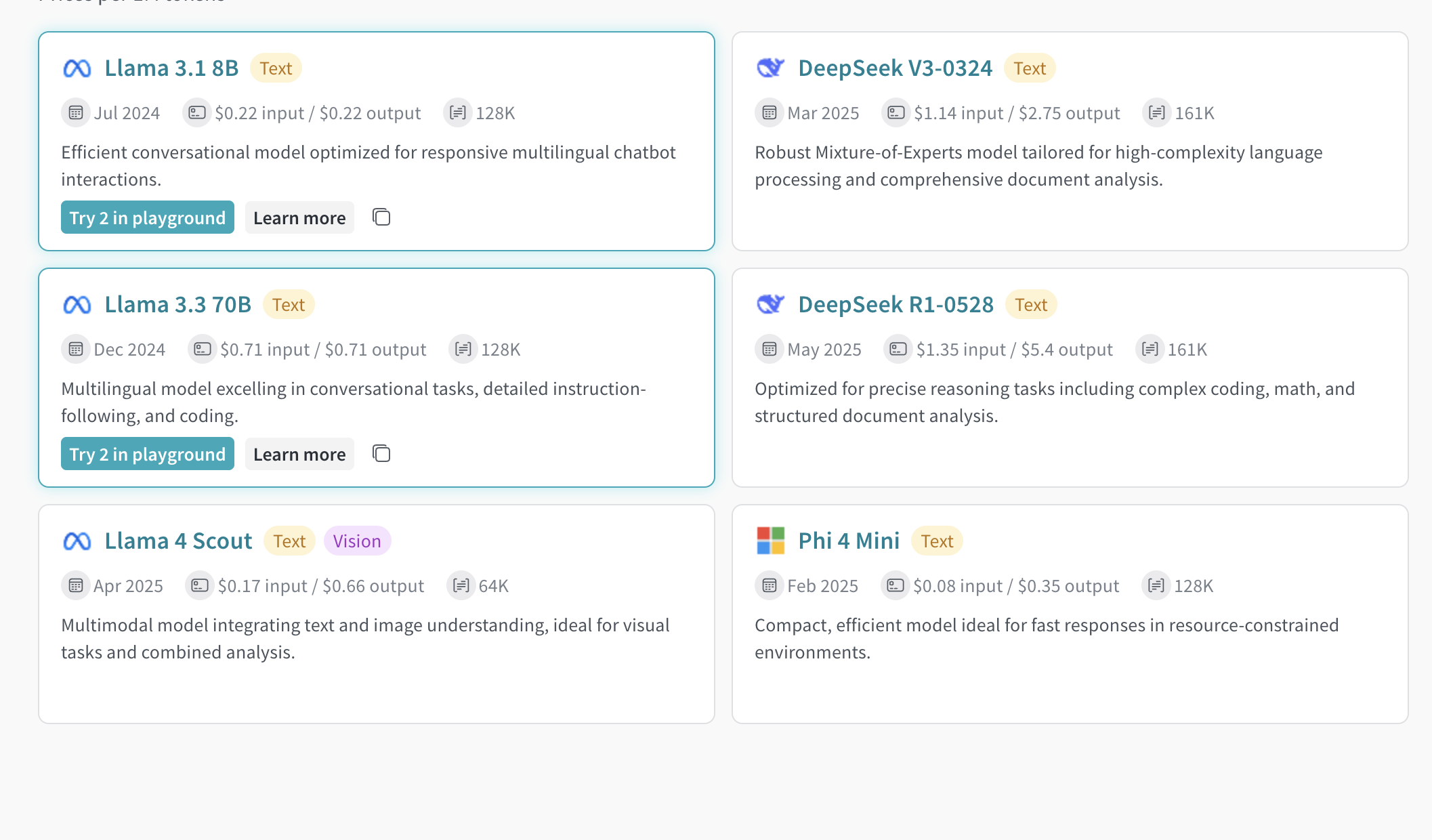
2. モデルカード上の任意の場所 (モデル名を除く) をクリックして選択します。選択されていることを示すため、カードが強調表示されます。
3. 比較したい各モデルについて、この操作を繰り返します
4. 選択したいずれかのカードで **Playground で \[N] 個のモデルを比較** をクリックします。`[N]` は選択したモデル数です。比較ビューが開きます。
これで、モデルを比較したり、[Playground でモデルを試す](#try-a-model-in-the-playground) のすべての機能を利用したりできます。
### Playground タブから
1. プロジェクトのサイドバーで **Playground** を選択します。Playground のチャット UI が表示されます。
2. LLM ドロップダウンリストで **Serverless Inference** にカーソルを合わせます。右側にモデルのドロップダウンが表示されます。
3. ドロップダウンから **Compare** を選択します。**Inference** タブが表示されます。
4. モデルカード上の任意の場所 (モデル名を除く) をクリックして選択します。選択されると、カードがハイライト表示されます。
5. 比較する各モデルに対してこの操作を繰り返します。
6. 選択した任意のカードで **Compare \[N] models in the Playground** をクリックします。比較ビューが開きます。
これで、モデルを比較し、[Playground でモデルを試す](#try-a-model-in-the-playground) のすべての機能を利用できます。
## 請求と利用状況の情報を確認する
組織管理者は、W\&B UI でクレジット残高、利用履歴、今後の請求額を確認できます。 このビューを使用して、支出を監視し、今後の請求額を予測できます。
1. UI の W\&B **Billing** ページにアクセスする
2. **Inference** の請求情報カードを検索する
3. ここから次の操作を行えます:
* **View usage** をクリックして、一定期間の利用状況を確認する
* 今後の Inference の請求額を確認する (有料プランの場合)
モデルごとの料金の詳細は、[Inference pricing page](https://wandb.ai/site/pricing/inference)を参照してください。
## 次のステップ
* [利用可能なモデル](/ja/inference/models)を確認して、ニーズに最適なものを見つけてください。
* プログラムで利用するには、[API](/ja/inference/api-reference/)をお試しください。
* コードサンプルは[使用例](/ja/inference/examples/)を参照してください。